Listen before moving anything
Pause just before the sentence and play it again. If one word appears early, inspect that word. If the mismatch grows as the clip progresses, check that you are using the same untrimmed recording that produced the transcript. Repeatedly shifting individual words may hide an underlying media mismatch.
Silence matters too. Watch the gap between sentences so that captions do not remain visible over an unrelated shot or disappear before the speaker finishes. Keep edits tied to the actual recording, not a fixed duration rule.
Use enough zoom to see the boundary
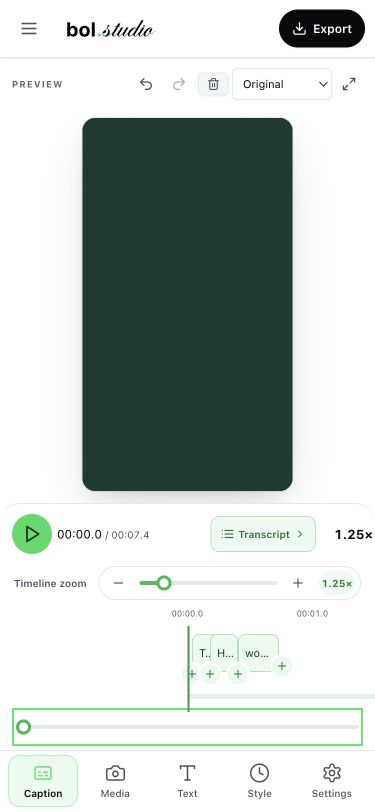
On mobile, open Caption and increase Timeline zoom until the short words are easy to target. Swipe the horizontal timeline to find the sentence. The Transcript button opens the vertical caption list when reading and correcting the words is easier there.
Use the word timing edges on the timeline to adjust starts and ends. Work on one boundary at a time, then replay from slightly before the edit. A word that looks right while paused may still feel rushed in the sentence. Undo is available if an adjustment makes the timing worse.
An example timing diagnosis
Illustrative timings for a made-up sentence. These are not universal recommended durations.
| What you notice | What to check |
|---|---|
| “aaj” appears before the speaker starts | Move its start toward the first audible syllable; check the previous word’s end. |
| “video” disappears mid-word | Check its end and the next word’s start while replaying the phrase. |
| Every later sentence drifts further away | Check the original media, trims and playback before making many local edits. |
The goal is alignment with the recorded speech. Do not introduce overlaps or zero-length words while correcting a boundary.
Try it in the editor
- Locate the mismatch by replaying the sentence with the original audio.
- Increase timeline zoom and select the relevant word or boundary.
- Adjust the start or end, then replay the phrase at normal speed.
- Review a short exported clip as well as the editor preview.